1. 创建Vue工程(Vue3)
1.1. 基于 vue-cli 创建
备注:目前
vue-cli已处于维护模式,官方推荐基于Vite创建项目。
## 查看@vue/cli版本,确保@vue/cli版本在4.5.0以上
vue --version

## 安装或者升级你的@vue/cli
npm install -g @vue/cli

## 执行创建命令 项目名:test
vue create test

##  随后选择3.x
##  Choose a version of Vue.js that you want to start the project with (Use arrow keys)
##  > 3.x
##    2.x

## 启动
cd test
npm run serve
1.2. 基于 vite 创建
vite 是新一代前端构建工具,官网地址:https://vitejs.cn,vite的优势看官方文档
- 具体操作如下
## 1.创建命令
npm create vue@latest


## 2.具体配置
√ Project name: test  ## 配置项目名称


√ Add TypeScript?    ## 是否添加TypeScript支持


√ Add JSX Support?    ## 是否添加JSX支持


√ Add Vue Router for Single Page Application development?    ## 是否添加路由环境


√ Add Pinia for state management?    ## 是否添加pinia环境


√ Add Vitest for Unit Testing?    ## 是否添加单元测试


√ Add an End-to-End Testing Solution?    ## 是否添加端到端测试方案


√ Add ESLint for code quality?    ## 是否添加ESLint语法检查


√ Add Prettier for code formatting? ## 是否添加Prettiert代码格式化先创建输出HelloWorld!
<template>
  <div class="app">
    <h1>HelloWorld!</h1>
  </div>
</template>

<script lang="ts">
  export default {
    name:'App' //组件名
  }
</script>

<style>
  .app {
    background-color: #ddd;
    box-shadow: 0 0 10px;
    border-radius: 10px;
    padding: 20px;
  }
</style>安装官方推荐的vscode插件(迭代可能弃用):

Vite项目中,index.html是项目的入口文件,在项目最外层。- 加载
index.html后,Vite解析<script type="module" src="xxx">指向的JavaScript。 Vue3中是通过createApp函数创建一个应用实例。
1.3. 来一个简单的效果
Vue3向下兼容Vue2语法,且Vue3中的模板中可以没有根标签
<template>
    <div class="home">
        <h2>sum:{{ sum }}</h2>
        <button @click="changeSum">sum+1</button>
    </div>
</template>

<script lang="ts">
export default {
    name: 'App',
    data() {
        return {
            sum: 18,
        }
    },
    methods: {
        changeSum() {
            this.sum += 1
        },
    },
}
</script>
2. Vue3核心语法
2.1. OptionsAPI 与 CompositionAPI
Vue2的API设计是Options(配置)风格的。Vue3的API设计是Composition(组合)风格的。
Options API 的弊端
Options类型的 API,数据、方法、计算属性等,是分散在:data、methods、computed中的,若想新增或者修改一个需求,就需要分别修改:data、methods、computed,不便于维护和复用。
Composition API 的优势
可以用函数的方式,更加优雅的组织代码,让相关功能的代码更加有序的组织在一起。
2.2. 拉开序幕的 setup
setup 概述
setup是Vue3中一个新的配置项,值是一个函数,它是 Composition API “表演的舞台_”_,组件中所用到的:数据、方法、计算属性、监视……等等,均配置在setup中。
特点如下:
setup函数返回的对象中的内容,可直接在模板中使用。setup中访问this是undefined。setup函数会在beforeCreate之前调用,它是“领先”所有钩子执行的。
<template>
  <div class="home">
    <h2>sum:{{sum}}</h2>
    <button @click="changeSum">sum+1</button>
  </div>
</template>

<script lang="ts">
  export default {
    name:'Home',
    setup(){
      // 数据,原来写在data中(注意:此时的sum数据都不是响应式数据)
      let sum = 0

      // 方法,原来写在methods中
      function changeSum(){
        sum += 1  // 注意:此时这么修改sum页面是不变化的
        console.log(sum)  // 控制台输出
      }

      // 返回一个对象,对象中的内容,模板中可以直接使用
      return {sum,changeSum}
    }
  }
</script>
setup 的返回值
- 若返回一个对象:则对象中的:属性、方法等,在模板中均可以直接使用(重点关注)。
- 若返回一个函数:则可以自定义渲染内容,代码如下:
setup(){
  return () => 'HelloWorld!'
}
setup 与 Options API 的关系
Vue2的配置(data、methos……)中可以访问到setup中的属性、方法。- 但在
setup中不能访问到Vue2的配置(data、methos……)。 - 如果与
Vue2冲突,则setup优先。
setup 语法糖
setup函数有一个语法糖,这个语法糖,可以让我们把setup独立出去,代码如下:
<template>
  <div class="person">
    <h2>sum:{{ sum }}</h2>
    <button @click="changSum">sum+1</button>
  </div>
</template>

<script lang="ts">
  export default {
    name:'Home',
  }
</script>

<!-- 下面的写法是setup语法糖 -->
<script setup lang="ts">
  console.log(this) //undefined

  // 数据(注意:此时的sum不是响应式数据)
  let sum = 0

  // 方法
  function changSum(){
    console.log(sum)
    sum += 1 //注意:此时这么修改sum页面是不变化的
  }
</script>扩展:上述代码,还需要编写一个不写setup的script标签,去指定组件名字,比较麻烦,我们可以借助vite中的插件简化
第一步:
npm i vite-plugin-vue-setup-extend -D第二步:
vite.config.tsimport { fileURLToPath, URL } from 'node:url' import { defineConfig } from 'vite' import vue from '@vitejs/plugin-vue' import VueSetupExtend from 'vite-plugin-vue-setup-extend' // https://vitejs.dev/config/ export default defineConfig({ plugins: [ vue(), VueSetupExtend(), ], resolve: { alias: { '@': fileURLToPath(new URL('./src', import.meta.url)) } } })第三步:
<script setup lang="ts" name="Home">
2.3. ref :基本类型的响应式数据
- 作用:定义响应式变量。
- 语法:
let xxx = ref(初始值)。 - 返回值:一个
RefImpl的实例对象,简称ref对象或ref,ref对象的value属性是响应式的。 - 注意点:
JS中操作数据需要:xxx.value,但模板中不需要.value,直接使用即可。- 对于
let name = ref('张三')来说,name不是响应式的,name.value是响应式的。
2.4. reactive :对象类型的响应式数据
- 作用:定义一个响应式对象(基本类型不要用它,要用
ref,否则报错) - 语法:
let 响应式对象= reactive(源对象)。 - 返回值:一个
Proxy的实例对象,简称:响应式对象。 - 注意点:
reactive定义的响应式数据是“深层次”的。
2.5. ref 创建:对象类型的响应式数据
- 其实
ref接收的数据可以是:基本类型、对象类型。 - 若
ref接收的是对象类型,内部其实也是调用了reactive函数。
2.6. ref 对比 reactive
宏观角度看:
ref用来定义:基本类型数据、对象类型数据;
reactive用来定义:对象类型数据。
- 区别:
ref创建的变量必须使用.value(可以使用volar插件自动添加.value)。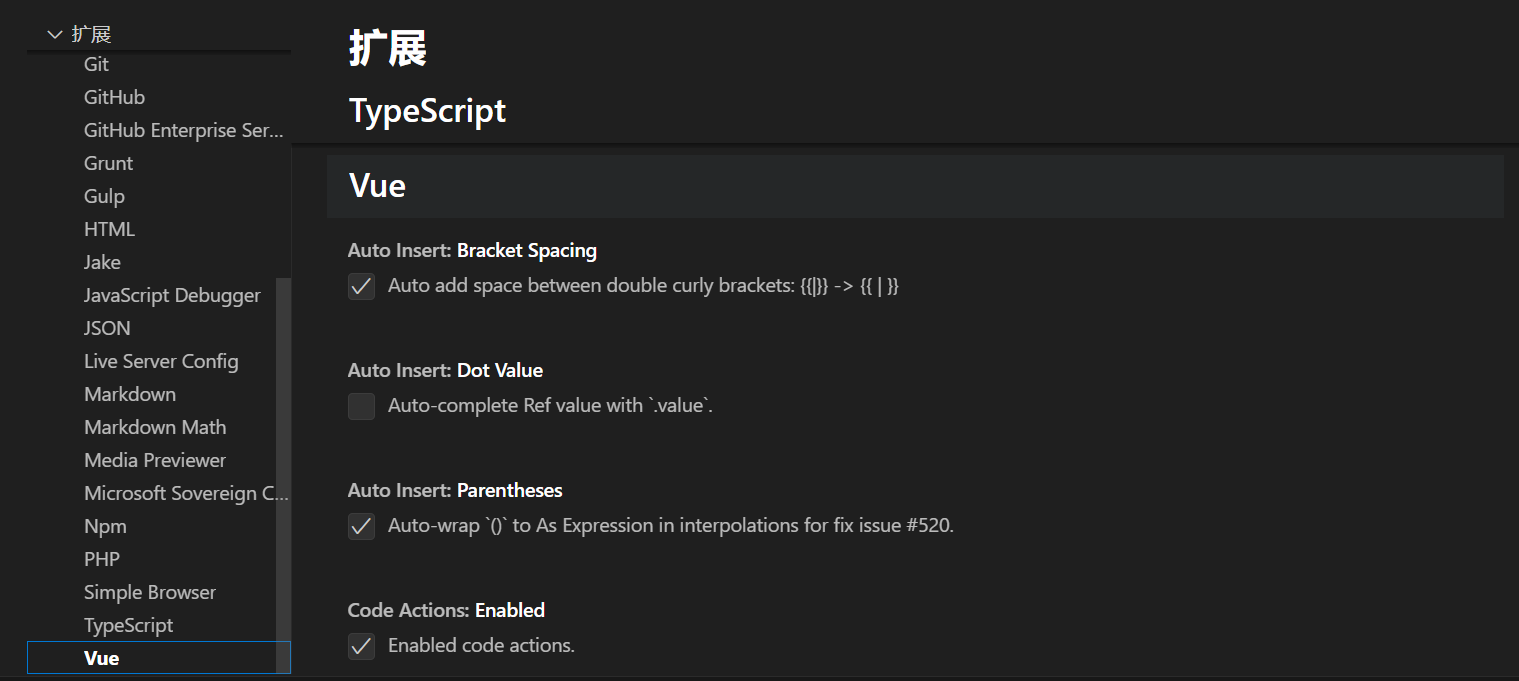
reactive重新分配一个新对象,会失去响应式(可以使用Object.assign(原对象,{请求对象})去整体替换)。
- 使用原则:
- 若需要一个基本类型的响应式数据,必须使用
ref - 若需要一个响应式对象,层级不深,
ref、reactive都可以 - 若需要一个响应式对象,且层级较深,推荐使用
reactive
- 若需要一个基本类型的响应式数据,必须使用
2.7. toRefs 与 toRef
- 作用:将一个响应式对象中的每一个属性,转换为
ref对象 - 备注:
toRefs与toRef功能一致,但toRefs可以批量转换 - 语法如下:
<template>
  <div class="home">
    <h2>姓名:{{person.name}}</h2>
    <h2>年龄:{{person.age}}</h2>
    <button @click="changeName">修改名字</button>
    <button @click="changeAge">修改年龄</button>
  </div>
</template>

<script lang="ts" setup name="Home">
  import {ref,reactive,toRefs,toRef} from 'vue'

  // 数据
  let person = reactive({name:'张三', age:18})

  // 通过toRefs将person对象中的n个属性批量取出,且依然保持响应式的能力
  let {name,age} =  toRefs(person)

  // 通过toRef将person对象中的age属性取出,且依然保持响应式的能力
  let nl = toRef(person,'age')

  // 方法
  function changeName(){
    name.value += '~'
  }
  function changeAge(){
    age.value += 1
  }
</script>
2.8. computed
作用:根据已有数据计算出新数据(和Vue2中的computed作用一致)。
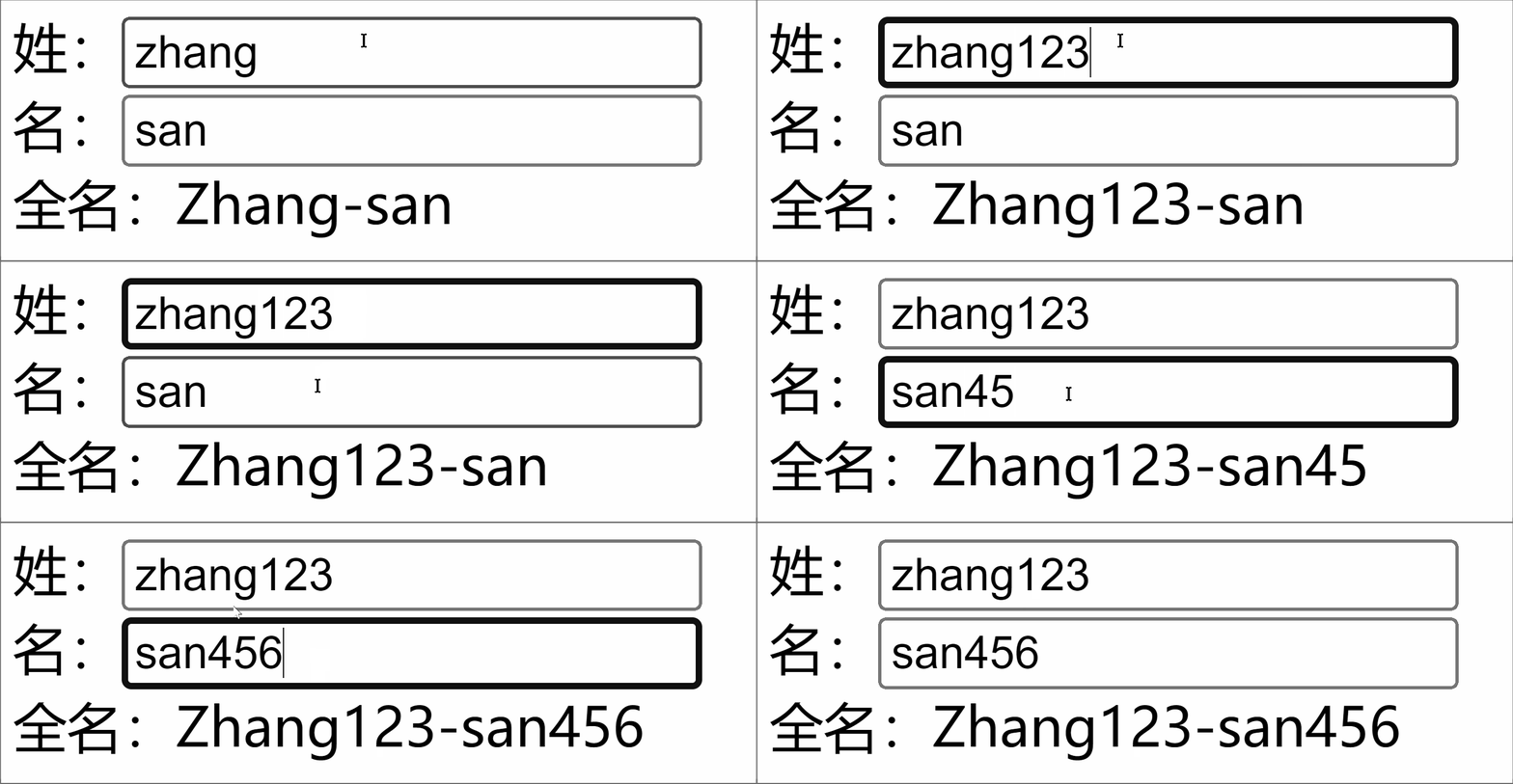
<template>
  <div class="home">
    姓:<input type="text" v-model="firstName"> <br>
    名:<input type="text" v-model="lastName"> <br>
    全名:<span>{{ fullName }}</span> <br>
    <button @click="changeFullName">全名改为:li-si</button>
  </div>
</template>

<script setup lang="ts" name="App">
  import {ref,computed} from 'vue'

  let firstName = ref('zhang')
  let lastName = ref('san')

  // 计算属性——只读取,不修改
  /* let fullName = computed(()=>{
    return firstName.value + '-' + lastName.value
  }) */


  // 计算属性——既读取又修改
  let fullName = computed({
    // 读取
    get(){
      return firstName.value + '-' + lastName.value
    },
    // 修改
    set(val){
      console.log('有人修改了fullName',val)
      firstName.value = val.split('-')[0]
      lastName.value = val.split('-')[1]
    }
  })

  function changeFullName(){
    fullName.value = 'li-si'
  }
</script>
2.9.watch
- 作用:监视数据的变化(和
Vue2中的watch作用一致) - 特点:
Vue3中的watch只能监视以下四种数据:ref定义的数据。reactive定义的数据。- 函数返回一个值(
getter函数)。 - 一个包含上述内容的数组。
我们在Vue3中使用watch的时候,通常会遇到以下几种情况:
情况一
监视ref定义的基本类型数据:直接写数据名即可,监视的是其value值的改变。
<template>
  <div class="home">
    <h2>sum:{{ sum }}</h2>
    <button @click="changeSum">sum+1</button>
  </div>
</template>

<script lang="ts" setup name="Home">
  import {ref,watch} from 'vue'
  // 数据
  let sum = ref(0)

  // 方法
  function changeSum(){
    sum.value += 1
  }

  // 监视ref定义的基本类型数据
  const stopWatch = watch(sum,(newValue,oldValue)=>{
    console.log('sum变化了',newValue,oldValue)
    if(newValue >= 10){
      stopWatch()
    }
  })
</script>
情况二
监视ref定义的对象类型数据:直接写数据名,监视的是对象的地址值,若想监视对象内部的数据,要手动开启深度监视。
注意:
若修改的是
ref定义的对象中的属性,newValue和oldValue都是新值,因为它们是同一个对象若修改整个
ref定义的对象,newValue是新值,oldValue是旧值,因为不是同一个对象
<template>
  <div class="home">
    <h2>姓名:{{ person.name }}</h2>
    <h2>年龄:{{ person.age }}</h2>
    <button @click="changeName">修改名字</button>
    <button @click="changeAge">修改年龄</button>
    <button @click="changePerson">修改整个人</button>
  </div>
</template>

<script lang="ts" setup name="Home">
  import {ref,watch} from 'vue'
  // 数据
  let person = ref({
    name:'张三',
    age:18
  })
  // 方法
  function changeName(){
    person.value.name += '~'
  }
  function changeAge(){
    person.value.age += 1
  }
  function changePerson(){
    person.value = {name:'李四',age:90}
  }
  /*
    监视ref定义的对象类型数据,监视的是对象的地址值,若想监视对象内部属性的变化,需要手动开启深度监视
    watch的第一个参数是:被监视的数据
    watch的第二个参数是:监视的回调
    watch的第三个参数是:配置对象(deep深度监视、immediate立即执行一次等等.....)
  */
  watch(person,(newValue,oldValue)=>{
    console.log('person变化了',newValue,oldValue)
  },{deep:true})

</script>
情况三
监视reactive定义的对象类型数据,默认开启了深度监视。
情况四
监视ref或reactive定义的对象类型数据中的某个属性,无论什么类型,由于版本问题统一都写成函数式
结论:监视的要是对象里的属性,最好写函数式,注意点:若是对象监视的是地址值,需要关注对象内部,需要手动开启深度监视。
<template>
    <div class="home">
        <h2>姓名:{{ person.name }}</h2>
        <h2>汽车:{{ person.car.c1 }}、{{ person.car.c2 }}</h2>
        <button @click="changeName">修改名字</button>
        <button @click="changeC1">修改第一台车</button>
        <button @click="changeC2">修改第二台车</button>
        <button @click="changeCar">修改整个车</button>
    </div>
</template>

<script lang="ts" setup name="Home">
import { reactive, watch } from 'vue'

// 数据
let person = reactive({
    name: '张三',
    car: {
        c1: '奔驰',
        c2: '宝马'
    }
})
// 方法
function changeName() {
    person.name += '~'
}
function changeC1() {
    person.car.c1 = '奥迪'
}
function changeC2() {
    person.car.c2 = '大众'
}
function changeCar() {
    person.car = { c1: '雅迪', c2: '爱玛' }
}

// 监视响应式对象中的某个属性,且该属性是基本类型的
// watch(()=> person.name,(newValue,oldValue)=>{
//   console.log('person.name变化了',newValue,oldValue)
// })

// 监视响应式对象中的某个属性,且该属性是对象类型的
watch(() => person.car, (newValue, oldValue) => {
    console.log('person.car变化了', newValue, oldValue)
}, { deep: true })
</script>
情况五
监视上述的多个数据
<template>
  <div class="home">
    <h2>姓名:{{ person.name }}</h2>
    <h2>汽车:{{ person.car.c1 }}、{{ person.car.c2 }}</h2>
    <button @click="changeName">修改名字</button>
    <button @click="changeC1">修改第一台车</button>
    <button @click="changeC2">修改第二台车</button>
    <button @click="changeCar">修改整个车</button>
  </div>
</template>

<script lang="ts" setup name="Home">
  import {reactive,watch} from 'vue'

  // 数据
  let person = reactive({
    name:'张三',
    car:{
      c1:'奔驰',
      c2:'宝马'
    }
  })
  // 方法
  function changeName(){
    person.name += '~'
  }
  function changeC1(){
    person.car.c1 = '奥迪'
  }
  function changeC2(){
    person.car.c2 = '大众'
  }
  function changeCar(){
    person.car = {c1:'雅迪',c2:'爱玛'}
  }

  // 监视上述的多个数据
  watch([()=>person.name,()=>person.car],(newValue,oldValue)=>{
    console.log('person.car变化了',newValue,oldValue)
  },{deep:true})

</script>
2.10. watchEffect
官网:立即执行一遍函数,同时响应式地追踪其依赖,并在依赖更改时重新执行该函数。
watch对比watchEffect都能监听响应式数据的变化,不同的是监听数据变化的方式不同
watch:要明确指出监视的数据watchEffect:不用明确指出监视的数据(函数中用到哪些属性,那就监视哪些属性)。
<template>
    <div class="home">
        <h2 id="demo">水温:{{ temp }}</h2>
        <h2>水位:{{ height }}</h2>
        <button @click="changePrice">水温+10</button>
        <button @click="changeSum">水位+5</button>
    </div>
</template>

<script lang="ts" setup name="Home">
import { ref, watchEffect } from 'vue'
// 数据
let temp = ref(0)
let height = ref(0)

// 方法
function changePrice() {
    temp.value += 10
}
function changeSum() {
    height.value += 5
}


// 用watchEffect实现
const stopWtach = watchEffect(() => {
    console.log(temp.value, height.value)

    // 室温达到30℃,或水位达到20cm,立刻联系服务器
    if (temp.value >= 30 || height.value >= 20) {
        console.log('联系服务器')
    }

    // 水温达到50,或水位达到30,再执行一次取消监视
    if (temp.value === 50 || height.value === 30) {
        console.log('结束监视')
        stopWtach()
    }
})
</script>
2.11. 标签的 ref 属性
作用:用于注册模板引用。
用在普通
DOM标签上,获取的是DOM节点。用在组件标签上,获取的是组件实例对象。
用在普通DOM标签上:
<template>
    <div class="home">
        <h1 ref="a">前端</h1>
        <h2 ref="b">Vue</h2>
        <button @click="show">点我打印内容</button>
    </div>
</template>

<script lang="ts" setup name="Home">
import { ref } from 'vue'

let a = ref()
let b = ref()
function show() {
    // 通过id获取元素(不建议这样使用,容易引起id冲突)
    const t = document.getElementById('a')


    // 通过ref获取元素
    console.log(a.value)
    console.log(b.value)
}
</script>
用在组件标签上:
<!-- 父组件App.vue -->
<template>
  <Person ref="ren"/>
  <button @click="test">测试</button>
</template>

<script lang="ts" setup name="App">
  import Person from './components/Person.vue'
  import {ref} from 'vue'

  let ren = ref()


  function test(){
    console.log(ren.value.name)
    console.log(ren.value.age)
  }
</script>


<!-- 子组件Person.vue中要使用defineExpose暴露内容 -->
<script lang="ts" setup name="Person">
  import {ref,defineExpose} from 'vue'
	// 数据
  let name = ref('张三')
  let age = ref(18)


  // 使用defineExpose将组件中的数据交给外部
  defineExpose({name,age})
</script>
2.12. props+传入类型
父组件传给子组件
// 定义一个接口,限制每个Person对象的格式
export interface PersonInter {
  id:string,
  name:string,
  age:number
  x?:number
  // 设置x可有可无
}

// 定义一个自定义类型Persons
export type Persons = Array<PersonInter>App.vue中代码:
<template>
    <Person :list="persons" />
</template>

<script lang="ts" setup name="App">
import Person from './components/Person.vue'
import { reactive } from 'vue'
import { type Persons } from './types'

let persons = reactive<Persons>([
    { id: 'e98219e12', name: '张三', age: 18 },
    { id: 'e98219e13', name: '李四', age: 19 },
    { id: 'e98219e14', name: '王五', age: 20 }
])
</script>Person.vue中代码:
<template>
    <div class="person">
        <ul>
            <li v-for="item in list" :key="item.id">
                {{ item.name }}--{{ item.age }}
            </li>
        </ul>
    </div>
</template>

<script lang="ts" setup name="Person">
import { defineProps, withDefaults } from 'vue'
import { type PersonInter } from '@/types'

// 第一种写法:仅接收(括号里面必须加[]数组形式)
// propsdefineProps(['list'])

// 第二种写法:接收+限制类型
// defineProps<{list:Persons}>()

// 第三种写法:接收+限制类型+指定默认值+限制必要性
let props = withDefaults(defineProps<{ list?: Persons }>(), {
    list: () => [{ id: 'asdasg01', name: '小猪佩奇', age: 18 }]
})
console.log(props)
</script>
2.13. 生命周期
概念:
Vue组件实例在创建时要经历一系列的初始化步骤,在此过程中Vue会在合适的时机,调用特定的函数,从而让开发者有机会在特定阶段运行自己的代码,这些特定的函数统称为:生命周期钩子规律:
生命周期整体分为四个阶段,分别是:创建、挂载、更新、销毁,每个阶段都有两个钩子,一前一后。
Vue2的生命周期创建阶段:
beforeCreate、created挂载阶段:
beforeMount、mounted更新阶段:
beforeUpdate、updated销毁阶段:
beforeDestroy、destroyedVue3的生命周期创建阶段:
setup挂载阶段:
onBeforeMount、onMounted更新阶段:
onBeforeUpdate、onUpdated卸载阶段:
onBeforeUnmount、onUnmounted常用的钩子:
onMounted(挂载完毕)、onUpdated(更新完毕)、onBeforeUnmount(卸载之前)示例代码:
<template>
    <div class="home">
        <h2>当前求和为:{{ sum }}</h2>
        <button @click="changeSum">点我sum+1</button>
    </div>
</template>


<script lang="ts" setup name="Home">
  import {
      ref,
      onBeforeMount,
      onMounted,
      onBeforeUpdate,
      onUpdated,
      onBeforeUnmount,
      onUnmounted
  } from 'vue'


  let sum = ref(0)


  function changeSum() {
      sum.value += 1
  }
  console.log('setup')
  // 生命周期钩子
  onBeforeMount(() => {
      console.log('挂载之前')
  })
  onMounted(() => {
      console.log('挂载完毕')
  })
  onBeforeUpdate(() => {
      console.log('更新之前')
  })
  onUpdated(() => {
      console.log('更新完毕')
  })
  onBeforeUnmount(() => {
      console.log('卸载之前')
  })
  onUnmounted(() => {
      console.log('卸载完毕')
  })
</script>
2.14. 自定义hooks
什么是
hooks?—— 本质是一个函数,把setup函数中使用的Composition API进行了封装,类似于vue2.x中的mixin。自定义
hooks的优势:复用代码, 让setup中的逻辑更清楚易懂。
npm install axios 安装 axios
示例代码:
useDog.ts中内容如下:
import { reactive, onMounted } from 'vue';
import axios from 'axios';

export default function(){
  let dogList = reactive<string[]>([])

  // 方法
  async function getDog(){
      try {
          // 发请求
          let result = await axios.get('https://dog.ceo/api/breeds/image/random')

          // 操作数据
          dogList.push(result.data.message)
      } catch (error) {
          // 处理异常
      }
  }

  // 挂载钩子
  onMounted(() => {
      getDog()
  })
  return {
      dogList,
      getDog,
  }
}- 组件中具体使用:
<template>
    <div class="person">
        <img v-for="(dog, index) in dogList" :src="dog" :key="index">
        <br>
        <button @click="getDog">再来一只小狗</button>
    </div>

</template>


<script lang="ts" setup name='Person'>


import useDog from '@/hooks/useDog';
const { dogList, getDog } = useDog();
</script>


<style scoped>
.person {
    background-color: skyblue;
    box-shadow: 0 0 10px;
    border-radius: 10px;
    padding: 20px;
}

button {
    margin: 0 5px;
}

img {
    height: 200px;
    margin-right: 10px;
}
</style>


